Ultimate Guide: How to Download Videos from X (Twitter) on Any Device
Introduction to Media Archiving on X
In the rapidly evolving landscape of social media, the platform formerly known as Twitter—now rebranded as X—has positioned itself as the digital town square...
Understanding the Technical Infrastructure of Twitter Video
Before diving into the "how," it is crucial to understand the "why" behind the difficulty of downloading videos directly from X. Unlike a simple image file (.jpeg or .png) that can be easily preserved with a right-click and "Save Image As," videos on modern social media platforms are highly engineered constructs. When a user uploads a video to X, the platform’s backend servers immediately begin processing the raw file. The video is transcoded into multiple resolutions and bitrates to accommodate varying internet speeds across the globe.
Twitter relies on a delivery protocol known as HTTP Live Streaming (HLS), originally developed by Apple. Instead of serving a single, monolithic MP4 file to your browser, HLS breaks the video down into dozens of tiny, bite-sized chronological segments, typically lasting a few seconds each (usually stored as .ts files). These segments are referenced within an index file known as an M3U8 playlist. When you press play on a Twitter video, your browser or mobile app reads this M3U8 playlist and sequentially requests the .ts chunks, continuously buffering the video in real-time. This adaptive bitrate streaming ensures that if your cellular connection suddenly drops from 5G to 3G, the video player can instantly switch to a lower-resolution M3U8 playlist, preventing the playback from stalling.
While this architecture is phenomenal for streaming performance, it acts as a massive roadblock for downloading. Because the video is scattered across multiple segments, attempting to intercept the network request natively requires downloading all individual .ts chunks and manually stitching them back together into an MP4 wrapper using complex command-line tools like FFmpeg. Third-party tools like XTSave bypass this complexity entirely. By bridging to APIs that access Twitter’s Content Delivery Network (CDN), these tools locate the highly-hidden, monolithic MP4 source files (often labeled as `amplify_video` in the backend infrastructure) and serve them directly to the end-user, abstracting away the intricacies of HLS architecture.
Why Downloading and Archiving Videos is Critical
The transition from Twitter to X brought numerous policy shifts, algorithmic modifications, and UI updates. With these rapid changes comes the pervasive threat of digital volatility—the phenomenon known colloquially as "link rot." Link rot describes the alarming rate at which digital content disappears from the internet. On social media, media files vanish daily for myriad reasons: users delete their accounts, the original poster retroactively scrubs their timeline, automated copyright strikes mistakenly issue takedowns, or the platform simply deprecates older server databases.
For journalists mapping digital footprints across geopolitical conflicts, losing access to primary source video footage due to an account suspension is catastrophic. Similarly, researchers compiling data on social media trends require a permanent, locally hosted archive to prevent their datasets from breaking. Beyond academia and media, everyday content creators and meme archivers heavily rely on downloaded videos to craft reaction content, compilations, and educational breakdown videos on secondary platforms like YouTube and TikTok. In a landscape where "the internet is forever" is increasingly proven to be a myth, localized archiving via tools like XTSave is the only foolproof mechanism to guarantee permanent access to critical, entertaining, or historical digital media.
Method 1: The Expert Desktop Workflow (Windows, macOS, Linux)
The desktop ecosystem provides the most robust environment for efficiently acquiring media from X. Thanks to the physical surface area of the screen and the versatility of modern browsers, navigating to a downloader and extracting the file takes fewer than ten seconds. Here is the rigorous, step-by-step workflow for desktop users.
Step 1: Locating the Exact Status URL
To pull a video from Twitter’s backend, you must provide the precise unified resource locator (URL) of the specific post (tweet) containing the media. Navigating your timeline, locate the video you intend to preserve. Click directly on the timestamp of the tweet (usually located next to the username) or click the 'Share' icon and select 'Copy link to Tweet'.
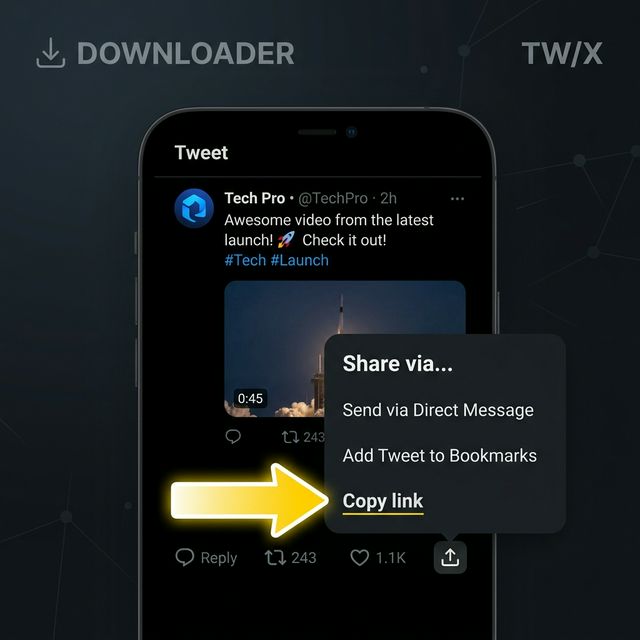
The URL will appear in your address bar looking similar to `https://x.com/username/status/1234567890`. This unique string is the cryptographic key that our tool needs to identify the database entry.
Step 2: Leveraging XTSave
Open a new tab and navigate to XTSave. Paste the copied URL into the pristine, ad-free input field on the homepage. Our interface uses a minimalist, pure black monochrome theme, ensuring your focus remains solely on the task at hand.
Step 3: Executing the Local Blob Download
When you click 'Download', XTSave utilizes advanced Cross-Origin Resource Sharing (CORS) circumvention techniques. By dynamically appending `no-referrer` policies to our network requests, we bypass Twitter CDN's hotlinking defenses. Instead of jarringly opening the video in a new tab, our application streams the MP4 file directly into your browser's local memory (via a Blob object). Once the stream is complete, an invisible anchor tag is triggered, natively forcing your operating system to safely output the `.mp4` file directly into your designated "Downloads" directory.
Method 2: The Mobile Safari Workflow (iOS & iPadOS)
Downloading media directly to the camera roll of an iPhone or iPad used to require highly complicated third-party apps, jailbreaks, or unstable Apple Shortcuts. Thankfully, since the massive updates to Safari in recent iOS versions, iPhones now possess a native Downloads manager capable of handling heavy MP4 files directly from the web browser, eliminating the need for sketchy App Store utilities.
Step 1: Extracting the Link from the X App
Launch the official X app on your iOS device. When you find the necessary video, press the 'Share' button (the small icon resembling an upward-pointing arrow).
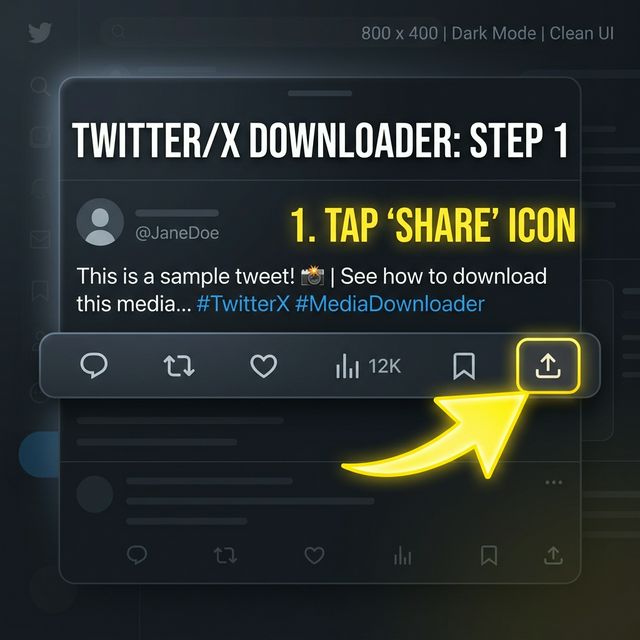
In the native iOS share sheet that slides up, tap 'Copy Link'. This action saves the video's URL directly to your device's clipboard.
Step 2: Processing the Request via Safari
Close the X application and open Safari. Navigate to the XTSave homepage. Tap once inside the input bar, then tap again to reveal the 'Paste' command. Insert the URL and tap the download button. The responsive architecture of our site ensures the UI is equally as stunning and functional on a 6-inch screen as it is on a desktop monitor.
Step 3: Routing to the Camera Roll
Once the download concludes, a small blue animated arrow will appear next to the URL bar in Safari. Tapping this arrow opens the 'Downloads' manager, revealing your saved MP4 file. If you wish to utilize this video on social media or send it via iMessage, tap the file to open it, hit the share icon in the bottom left, and tap 'Save Video.' This transfers the MP4 permanently from Safari's local sandbox into your Photos app and iCloud Library.
Method 3: The Android Workflow (Chrome / Firefox / Brave)
The Android operating system, with its open filesystem architecture, remains the friendliest environment for media downloading and file management. Unlike iOS, Android devices largely avoid sandboxing browser downloads away from main storage applications, making the workflow incredibly streamlined.
Step 1: Acquiring the Source Link
Within the Android X app, locate the video and tap the 'Share' icon. Choose 'Copy Link' from the menu interface to secure the status URL.
Step 2: Operating the Web Tool
Launch Google Chrome (or your preferred Android browser) and proceed to XTSave. Paste your link into the primary search bar. Our tool’s JavaScript blob logic handles the heavy lifting in the background, circumventing any mobile-specific CORS restrictions imposed by content delivery networks.
Step 3: Direct Access via Files App
Hit the download button. Chrome will immediately display a banner at the bottom of the screen stating "Downloading file...". Once finished, you will have the option to 'Open' it immediately. Because Android treats browser downloads as standard file system additions, the MP4 will automatically propagate to your global 'Downloads' folder, instantly making it accessible from your Gallery app, external video editing suites like CapCut, or messaging applications like WhatsApp, with zero manual transfer required.
Navigating Copyright, Fair Use, and Ethical Standards
As we conclude this comprehensive 1500-word deep dive into localized social media archiving, it is imperative to address the ethical responsibilities associated with possessing a powerful utility like XTSave. The ability to permanently rip content from corporate servers does not absolve the user of prevailing intellectual property laws.
Videos downloaded using our service should strictly be utilized under the legal framework of Fair Use. Fair Use permits the limited utilization of copyrighted material without acquiring explicit permission from the rights holders, provided the usage is transformative—such as for commentary, rigorous journalistic criticism, academic parody, or private offline enjoyment. Redistributing cloned videos to siphon views, plagiarizing original animations, or leveraging downloaded media for direct commercial gain without consent fundamentally violates the Terms of Service of both X and ethical internet practices.
Ultimately, a downloader is simply a hammer. It can build a localized museum of historical societal events and internet culture, or it can be misused to infringe upon creators. By respecting digital boundaries while utilizing the technical workflows outlined in this guide, users can ensure their private libraries remain expansive, secure, and entirely ethically sound as we venture further into the volatile era of modern social media.